
Document Information
- Feature: Reading Plans
- Version: 1.0
- Last Updated: January 2026
- Audience: Youth Ministry Leaders, Church Admins, SuperAdmins
1. Overview
1.1 Purpose
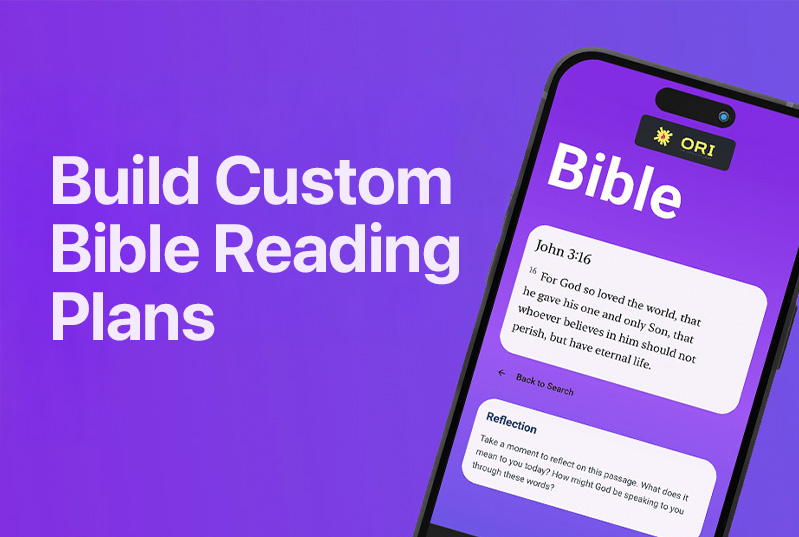
Reading Plans provide structured Bible reading experiences with daily scripture assignments, devotional prompts, and progress tracking to help students develop consistent Scripture reading habits.
1.2 Key Capabilities
- Create custom multi-day reading plans
- Assign multiple scripture references per day
- Include devotional reflection prompts
- Track individual and group progress
- Scope plans to global, church, or group levels
- Visual customization with images and tags
1.3 Access Levels
| Role | View Plans | Start Plans | Create Plans | Edit Plans | Delete Plans | Global Scope |
|---|---|---|---|---|---|---|
| Student | ✓ | ✓ | ✗ | ✗ | ✗ | ✗ |
| Leader | ✓ | ✓ | ✓ (Church) | Own Plans | Own Plans | ✗ |
| Church Admin | ✓ | ✓ | ✓ (Church) | Church Plans | Church Plans | ✗ |
| SuperAdmin | ✓ | ✓ | ✓ (All) | All Plans | All Plans | ✓ |
2. Plan Structure
2.1 Plan Properties
| Property | Required | Description |
|---|---|---|
| Title | Yes | Plan name (displayed to users) |
| Description | Yes | Overview of plan content and purpose |
| Days | Yes | Array of daily reading assignments |
| Scope | Yes | global, church, or group |
| isPublished | No | Whether plan is visible to users (default: false) |
| imageUrl | No | Cover image for visual appeal |
| tags | No | Categorization tags |
| estimatedDuration | No | Expected time to complete |
2.2 Day Properties
| Property | Required | Description |
|---|---|---|
| dayNumber | Yes | Sequential day identifier |
| title | Yes | Day title (e.g., “Day 1: Introduction to Romans”) |
| scriptureReferences | Yes | Array of references (e.g., [“Romans 1”, “Romans 2”]) |
| devotionalPrompt | No | Reflection question or application prompt |
2.3 Scope Definitions
Global Scope
- Available to all users across all churches
- Created by SuperAdmins only
- Ideal for universal content (e.g., Gospel of John study)
Church Scope
- Available to all users within a specific church
- Created by Church Leaders, Admins, or SuperAdmins
- Ideal for church-wide initiatives
Group Scope
- Available only to members of a specific small group
- Created by Group Leaders or above
- Ideal for targeted small group content
3. Creating Reading Plans
3.1 Accessing the Plan Builder
Navigation Path: Admin → Reading Plans → Create New Plan
Prerequisites:
- User must have Leader role or higher
- User must be authenticated
3.2 Quick Start Templates
Available templates for rapid plan creation:
- Blank Plan — Start from scratch
- 7-Day Template — One week of readings
- 30-Day Template — Month-long journey
- Book Study Template — Work through a biblical book
3.3 Adding Days
Step-by-Step Process:
- Click “Add Day” in the Days Navigator
- Enter day title
- Add scripture references (comma-separated for multiple)
- Write devotional prompt (optional but recommended)
- Repeat for additional days
Multi-Reference Format:
Romans 1, Romans 2, Romans 3Each reference displays in its own expandable section.
3.4 Editing Days
Available Actions:
- Edit title and content
- Reorder via drag-and-drop
- Duplicate existing days
- Delete days
3.5 Plan Settings
Required Settings:
- Title (clear, descriptive name)
- Description (purpose and overview)
- Scope (who can access)
Optional Settings:
- Cover image upload
- Tags for categorization
- Estimated duration
- Published status
3.6 Saving Plans
Autosave: Plans automatically save every 30 seconds when changes are detected
Manual Save: Click “Save” button in header
Draft vs Published:
- Draft plans are only visible to the creator
- Published plans are visible based on scope settings
4. Managing Reading Plans
4.1 Viewing All Plans
Navigation Path: Admin → Reading Plans
Display Information:
- Plan title and description
- Day count
- Scope indicator
- Published status
- Creation date
4.2 Editing Existing Plans
- Navigate to Admin → Reading Plans
- Click on plan to edit
- Make changes in Plan Builder
- Save changes
Note: Changes to published plans are immediately visible to users.
4.3 Publishing/Unpublishing
To Publish:
- Open plan in Plan Builder
- Toggle “Published” switch in header
- Save changes
To Unpublish:
- Toggle “Published” switch off
- Save changes
- Plan becomes draft (hidden from users)
4.4 Deleting Plans
Warning: Deletion is permanent and removes all associated progress data.
Process:
- Navigate to plan list
- Click delete icon on plan row
- Confirm deletion in dialog
5. Student Experience
5.1 Discovering Plans
Access Points:
- Study section → Reading Plans
- Featured plans on dashboard (if configured)
- Direct links shared by leaders
Plan Preview:
- Title and description
- Day count and structure
- Estimated duration
- Preview of first few days
5.2 Starting a Plan
- Click “Start This Plan” on plan detail
- Plan is added to user’s active plans
- Day 1 becomes accessible
5.3 Daily Reading Flow
- Open Reading Plans section
- Select active plan
- Current day displays with:
- Scripture text (fetched automatically)
- Multiple references in accordion (if applicable)
- Devotional prompt
- Read through scripture content
- Reflect on devotional prompt
- Click “Mark as Complete”
5.4 Navigation
Within a Plan:
- Previous/Next day buttons
- Day picker for jumping to specific days
- Progress indicator showing completion
Returning to Plans:
- Plans persist across sessions
- Resume from last incomplete day
5.5 Progress Tracking
Individual Progress:
- Visual progress bar (percentage complete)
- Checkmarks on completed days
- Current day indicator
Progress Storage:
- Stored in user profile (Firestore)
- Syncs across devices
- Persists indefinitely
6. Progress Tracking & Reporting
6.1 Individual Progress
Data Captured:
- Days completed (with timestamps)
- Current progress percentage
- Plan completion date (when applicable)
6.2 Group Progress (Future Enhancement)
Potential Metrics:
- Group completion rate
- Average days completed
- Most engaged members
6.3 XP Integration
XP Awards:
- Completing a day: XP awarded
- Completing entire plan: Bonus XP
7. Best Practices
7.1 Plan Design
Optimal Day Length:
- 1-3 chapters per day
- 15-20 minute reading time
- Balance depth with consistency
Effective Titles:
- Clear and descriptive
- Include day number
- Hint at content focus
Compelling Prompts:
- Open-ended questions
- Personal application focus
- Avoid yes/no questions
7.2 Plan Length Guidelines
| Duration | Days | Use Case |
|---|---|---|
| Short | 5-7 | Introductions, specific topics |
| Medium | 14-21 | Book studies, themed series |
| Long | 30+ | Deep dives, comprehensive studies |
7.3 Scripture Reference Guidelines
Single Chapter:
John 3Multiple Chapters:
John 3, John 4, John 5Specific Verses:
John 3:16-21Mixed Format:
Psalm 23, Psalm 24:1-107.4 Engagement Strategies
- Launch Together — Start plans at weekly gatherings
- Regular Check-ins — Ask about progress in small groups
- Celebrate Milestones — Recognize day 7, halfway, completion
- Lead by Example — Complete plans alongside students
- Create Discussion — Use prompts as small group topics
8. Troubleshooting
8.1 Common Issues
Plan Won’t Save
- Check internet connection
- Verify required fields are complete
- Try manual save after autosave failure
Scripture Not Loading
- Verify reference format is correct
- Check for typos in book names
- Ensure internet connectivity
Progress Not Updating
- Refresh the page
- Check user is authenticated
- Verify day was marked complete (not just viewed)
Plan Not Visible to Students
- Confirm plan is published
- Verify scope matches user’s church/group
- Check plan visibility settings
8.2 Data Recovery
Accidental Day Deletion:
- Use browser back button immediately
- Recreate from scratch if page refreshed
Plan Deletion:
- No recovery available
- Consider unpublishing instead of deleting
9. Integration Points
9.1 Small Groups
- Assign group-scoped plans
- Track group progress together
- Discuss readings in group chat
9.2 Memorization
- Identify key verses from readings
- Assign as memorization targets
- Connect reading to retention
9.3 Challenges
- Create “Complete 7 Days” challenge
- Award bonus XP for consistency
- Track alongside reading progress
9.4 Achievements
- Unlock badges for plan completion
- Recognize reading streaks
- Celebrate milestones
10. Security & Permissions
10.1 Data Access
- Users can only view plans matching their scope
- Progress data is private to each user
- Leaders cannot view individual student progress (current limitation)
10.2 Editing Restrictions
- Only plan creators can edit (or higher roles)
- Church-scoped plans can be edited by church admins
- Global plans require SuperAdmin access
11. Appendix
11.1 Quick Reference Card
Create Plan: Admin → Reading Plans → Create New
Edit Plan: Admin → Reading Plans → [Click Plan]
Start Plan: Study → Reading Plans → Start This Plan
Mark Complete: [Open Day] → Mark as Complete
11.2 Keyboard Shortcuts (Plan Builder)
| Shortcut | Action |
|---|---|
| Ctrl/Cmd + S | Save Plan |
| Drag & Drop | Reorder Days |
11.3 Related Documentation
- Small Groups SOP
- Memorization SOP
- Challenges SOP
- Achievements SOP
For additional support, contact your church administrator or system support.